Page 1 of 2

Multi Expression Pedal thing.

Posted: Wed Jun 24, 2020 4:06 am
by Adoom
This might be a game changer for me.

https://missionengineering.com/shop-2/p ... ssionator/

Re: Multi Expression Pedal thing.

Posted: Wed Jun 24, 2020 5:13 am
by qersty
Forgot about these. Really cool pedal. They have been around for a while but mission didnt use to make them

Re: Multi Expression Pedal thing.

Posted: Wed Jun 24, 2020 7:46 am
by Gone Fission
Cool but a niche product. Like the Source Audio Reflex, which was a loss for the company because it couldn’t sell enough to recoup its development costs. So I’d suggest buying at full price if you want/need it or you may miss your window to get one at all.

(The fancy mega Moog expression pedal also didn’t last as a product, either. This is a tough segment.)

Re: Multi Expression Pedal thing.

Posted: Wed Jun 24, 2020 10:34 am
by Chankgeez
Yeah, you can thank elevenstrings for that thing. He's the one that invented it! :!!!:

Re: Multi Expression Pedal thing.

Posted: Wed Jun 24, 2020 1:13 pm
by Schlatte
found it to be too unusable for me, made my own.

Re: Multi Expression Pedal thing.

Posted: Wed Jun 24, 2020 1:26 pm
by ognoy
I could use something like that, with 3 expression-able pedals on my board(BitQuest, Blooper and Volante), but not so keen on playing 200+$ for one.
Any DIY options available?

Re: Multi Expression Pedal thing.

Posted: Wed Jun 24, 2020 1:48 pm
by Adoom
I’m dumb as hell.

Is there a thing that makes a pedal go wher the footswitch tells it to?

Moog are so out of my price range the Grandmother seemed like daylight robbery.

Schaltte, is that thing buildable? I’d much rather pay my friend than some ghost.

Re: Multi Expression Pedal thing.

Posted: Wed Jun 24, 2020 2:09 pm
by Schlatte
I have something like this coming up, as soon as I get my shark tank back up, but I can share some info here, if you want.

SPOILER : show
Image

It's a 4-channel expression expander.
One Exp input lets you control up to 4 exp inputs.
Each channel can be turned on/off separately or you can save patches (4 of them) for having a combination of channels enabled at once.
Also 4 different tapers are available for the expression outputs.
Detailed description in bottom spoiler.
SPOILER : show
This device enables you to control 4 Expression inputs with one Expression pedal. There are 4 TRS outputs on the back to connect expression-capable pedals using standard TRS cables. The fifth jack is the Expression Pedal input, accepting a standard TRS plug from Expression pedals with 10 – 100k resistance (so pretty much every expression pedal that is out there). Power is supplied to the standard barrel connector (2.1mm tip, negative center, “Boss Style”), power requirement is 9VDC and approximately 200mA.

The outputs are using digital potentiometers with 50k wiper resistance. The Expression Multiplexer incorporates an internal double supply voltage generation, meaning that the accepted signal levels on the outputs range from -9V to +9V, so that even analog AC signals can be handled. Exceeding those levels could cause permanent damage to the device.

The Expression Multiplexer has four different taper settings for the output channels:
• LIN – linear pot sweep
o Copies your expression pedal input
o When you go heel to toe, the output goes heel to toe

• INV. LIN – inverted linear pot sweep
o Inverts your expression pedal input
o When you go heel to toe, the output goes toe to heel

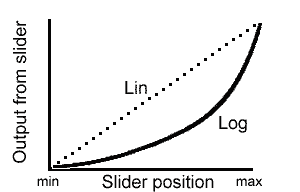
• LOG – logarithmic pot sweep
o Translates your expression pedal input to logarithmic taper (audio taper)
o When you go heel to toe, the output goes heel to toe in a logarithmic sweep, meaning the resistance change increases exponentially with the travel of the expression pedal

• INV. LOG – inverted logarithmic pot sweep
o Inverts your expression pedal input and translates it to logarithmic (audio) taper
o When you go heel to toe, the output goes toe to heel in a logarithmic sweep, meaning the resistance change decreases exponentially with the travel of the expression pedal

The difference between linear and logarithmic potentiometer tapers are maybe better understandable via this graph:
Image


For the inverted settings, the sweep basically changes direction, meaning the resistance goes from max to min when you go from heel to toe on your expression pedal.

Now for the controls – there are two buttons (Engage!, Select!) and one potentiometer (wiper/patch) to operate the pedal. Every one of those elements performs different operations depending on the operating mode that the Expression Multiplexer is currently working in. Additionally, there are 8 LEDs on the pedal, one for each channel and 4 around the mode/patch potentiometer to indicate the selected taper sweep or current patch. There are three modes of operation:
• Channel Mode
o Used to control each channel separately
o Stepping through channels is done via the Select! Button
o Turning the channel on or off is done via the Engage! Button
o Setting the wiper mode for the selected channel is done via the potentiometer – each channel “remembers” the setting, even after the channel is changed or activated/deactivated. Previous setting can be overwritten simply by selecting the channel an moving the selector to the newly desired position

• Patch Mode
o Used to switch between four presets
o Each preset contains taper info for each channel and if it is turned on or off
o Stepping through presets is done via the Select! Button
o Patches can also be selected using the potentiometer
o Activating/Deactivating the preset is done via the Engage! Button
o Only one preset can be active at a time

• Save Mode
o Used to save a patch on a certain spot
o Selector knob is used to select the spot to save on
o Select! Button is used to save on selected spot

Switching between the operating modes is done using the two buttons. To switch between “Patch” and “Channel” Mode, press both buttons simultaneously. Entering “Save Mode” is only possible from “Channel” Mode by holding down the Select! button for two seconds.

Each of the LEDs indicates a different status in each mode. Each LED has four different patterns:
• On
• Off
• Slow blink
• Fast blink

In “Channel” Mode the Taper/Patch LED indicates the set taper sweep of the currently selected channel (only one LED is on, because only one taper can be set for a channel). The Channel LEDs indicate which channels are on or off and which one is currently selected:
• Channel ON and not selected: LED on
• Channel OFF and not selected: LED off
• Channel ON and selected: LED fast blink
• Channel OFF and selected: LED slow blink

In “Patch” Mode the Taper/Patch LEDs indicate, which patch is currently selected and on or off:
• Patch ON and not selected: LED on
• Patch OFF and not selected: LED off
• Patch ON and selected: LED fast blink
• Patch OFF and selected: LED slow blink

The LEDs therefore also provide indication, which operating mode is currently active – if one of the channel LEDs is blinking, you are in “Channel” mode, if one of the Taper/Patch LEDs is, you’re in “Patch” mode.
The third mode (“Save” mode) is quite special. It can be activated only from “Channel” mode by holding down the Select! button for >2s. This mode is used to store presets to recall in “Patch” mode. To store such a preset, set up the channels with their individual taper settings and on/off state in “Channel” mode, then activate “Save” mode by holding down the Select! button. You can then use the potentiometer to select on which spot you want to save your settings (the selected spot is indicated by a fast blinking LED). The settings are saved on that spot by holding down the Select! button again for >2s and therefore returning to “Channel” mode again. Keep in mind which presets are saved on which spot, since you can easily overwrite them.

The pedal remembers all settings, patches and also the last operating mode after power-off. This means that if you turned the pedal off in “Patch” mode, it will also power up in “Patch” mode the next time. If you power it down in “Channel” mode, it will also be in that mode when powering up. Only “Save” mode is lost, resulting in the pedal returning to “Channel” mode after a power cycle.
The taper settings for each channel are also saved, so you can pick up right where you left off after powering down and up again.

Another important hint is that the wiper position of a channel is only altered, when the channel is active (either in “Channel” or “Patch” mode). If the channel is deactivated, the wiper is frozen at its current position. If the channel is activated again, the wiper will jump to the value currently input from the expression pedal, with the translation of the selected taper happening in between. This means, that you could also “jump” between different positions by deactivating a channel (or patch), altering your expression pedals setting and then reengaging the channel or patch. Oh what fun to have!

Re: Multi Expression Pedal thing.

Posted: Wed Jun 24, 2020 2:10 pm
by Schlatte
ognoy wrote:I could use something like that, with 3 expression-able pedals on my board(BitQuest, Blooper and Volante), but not so keen on playing 200+$ for one.
Any DIY options available?
I can supply you with Schematics, source codes or even bare PCBs, if you want.

Re: Multi Expression Pedal thing.

Posted: Wed Jun 24, 2020 4:02 pm
by ognoy
Schlatte wrote:
ognoy wrote:I could use something like that, with 3 expression-able pedals on my board(BitQuest, Blooper and Volante), but not so keen on playing 200+$ for one.
Any DIY options available?
I can supply you with Schematics, source codes or even bare PCBs, if you want.
If it includes more than a couple of jacks, some wire and a switch, it is probably a better idea to buy one of you, if you sell them for cheaper than ME. ;)

Re: Multi Expression Pedal thing.

Posted: Wed Jun 24, 2020 4:55 pm
by goroth
Adam at copilot makes some cool
Expression stuff too.

Re: Multi Expression Pedal thing.

Posted: Wed Jun 24, 2020 5:12 pm
by Schlatte
goroth wrote:Adam at copilot makes some cool
Expression stuff too.
Our residend reptile has spoken the truth.
Copilot Broadband is an excellent expression pedal expander.
Although it was missing the functionality to turn the Expression output on/off as needed :idk:
If that is no concern, I recommend it!

Re: Multi Expression Pedal thing.

Posted: Wed Jun 24, 2020 6:54 pm
by Gone Fission
Nice! Got a Reflex already but could definitely happily add yours for more control. Please bump when you start producing them!

Re: Multi Expression Pedal thing.

Posted: Fri Jun 26, 2020 2:47 am
by goroth
Schlatte wrote:
goroth wrote:Adam at copilot makes some cool
Expression stuff too.
Our residend reptile has spoken the truth.
Copilot Broadband is an excellent expression pedal expander.
Although it was missing the functionality to turn the Expression output on/off as needed :idk:
If that is no concern, I recommend it!
Adam can build that functionality. He does custom stuff all the time.

Re: Multi Expression Pedal thing.

Posted: Sun Jun 28, 2020 7:58 pm
by cbm
This looks really nice.
Schlatte wrote:I have something like this coming up, as soon as I get my shark tank back up, but I can share some info here, if you want.

SPOILER : show
Image

It's a 4-channel expression expander.
One Exp input lets you control up to 4 exp inputs.
Each channel can be turned on/off separately or you can save patches (4 of them) for having a combination of channels enabled at once.
Also 4 different tapers are available for the expression outputs.
Detailed description in bottom spoiler.
SPOILER : show
This device enables you to control 4 Expression inputs with one Expression pedal. There are 4 TRS outputs on the back to connect expression-capable pedals using standard TRS cables. The fifth jack is the Expression Pedal input, accepting a standard TRS plug from Expression pedals with 10 – 100k resistance (so pretty much every expression pedal that is out there). Power is supplied to the standard barrel connector (2.1mm tip, negative center, “Boss Style”), power requirement is 9VDC and approximately 200mA.

The outputs are using digital potentiometers with 50k wiper resistance. The Expression Multiplexer incorporates an internal double supply voltage generation, meaning that the accepted signal levels on the outputs range from -9V to +9V, so that even analog AC signals can be handled. Exceeding those levels could cause permanent damage to the device.

The Expression Multiplexer has four different taper settings for the output channels:
• LIN – linear pot sweep
o Copies your expression pedal input
o When you go heel to toe, the output goes heel to toe

• INV. LIN – inverted linear pot sweep
o Inverts your expression pedal input
o When you go heel to toe, the output goes toe to heel

• LOG – logarithmic pot sweep
o Translates your expression pedal input to logarithmic taper (audio taper)
o When you go heel to toe, the output goes heel to toe in a logarithmic sweep, meaning the resistance change increases exponentially with the travel of the expression pedal

• INV. LOG – inverted logarithmic pot sweep
o Inverts your expression pedal input and translates it to logarithmic (audio) taper
o When you go heel to toe, the output goes toe to heel in a logarithmic sweep, meaning the resistance change decreases exponentially with the travel of the expression pedal

The difference between linear and logarithmic potentiometer tapers are maybe better understandable via this graph:
Image


For the inverted settings, the sweep basically changes direction, meaning the resistance goes from max to min when you go from heel to toe on your expression pedal.

Now for the controls – there are two buttons (Engage!, Select!) and one potentiometer (wiper/patch) to operate the pedal. Every one of those elements performs different operations depending on the operating mode that the Expression Multiplexer is currently working in. Additionally, there are 8 LEDs on the pedal, one for each channel and 4 around the mode/patch potentiometer to indicate the selected taper sweep or current patch. There are three modes of operation:
• Channel Mode
o Used to control each channel separately
o Stepping through channels is done via the Select! Button
o Turning the channel on or off is done via the Engage! Button
o Setting the wiper mode for the selected channel is done via the potentiometer – each channel “remembers” the setting, even after the channel is changed or activated/deactivated. Previous setting can be overwritten simply by selecting the channel an moving the selector to the newly desired position

• Patch Mode
o Used to switch between four presets
o Each preset contains taper info for each channel and if it is turned on or off
o Stepping through presets is done via the Select! Button
o Patches can also be selected using the potentiometer
o Activating/Deactivating the preset is done via the Engage! Button
o Only one preset can be active at a time

• Save Mode
o Used to save a patch on a certain spot
o Selector knob is used to select the spot to save on
o Select! Button is used to save on selected spot

Switching between the operating modes is done using the two buttons. To switch between “Patch” and “Channel” Mode, press both buttons simultaneously. Entering “Save Mode” is only possible from “Channel” Mode by holding down the Select! button for two seconds.

Each of the LEDs indicates a different status in each mode. Each LED has four different patterns:
• On
• Off
• Slow blink
• Fast blink

In “Channel” Mode the Taper/Patch LED indicates the set taper sweep of the currently selected channel (only one LED is on, because only one taper can be set for a channel). The Channel LEDs indicate which channels are on or off and which one is currently selected:
• Channel ON and not selected: LED on
• Channel OFF and not selected: LED off
• Channel ON and selected: LED fast blink
• Channel OFF and selected: LED slow blink

In “Patch” Mode the Taper/Patch LEDs indicate, which patch is currently selected and on or off:
• Patch ON and not selected: LED on
• Patch OFF and not selected: LED off
• Patch ON and selected: LED fast blink
• Patch OFF and selected: LED slow blink

The LEDs therefore also provide indication, which operating mode is currently active – if one of the channel LEDs is blinking, you are in “Channel” mode, if one of the Taper/Patch LEDs is, you’re in “Patch” mode.
The third mode (“Save” mode) is quite special. It can be activated only from “Channel” mode by holding down the Select! button for >2s. This mode is used to store presets to recall in “Patch” mode. To store such a preset, set up the channels with their individual taper settings and on/off state in “Channel” mode, then activate “Save” mode by holding down the Select! button. You can then use the potentiometer to select on which spot you want to save your settings (the selected spot is indicated by a fast blinking LED). The settings are saved on that spot by holding down the Select! button again for >2s and therefore returning to “Channel” mode again. Keep in mind which presets are saved on which spot, since you can easily overwrite them.

The pedal remembers all settings, patches and also the last operating mode after power-off. This means that if you turned the pedal off in “Patch” mode, it will also power up in “Patch” mode the next time. If you power it down in “Channel” mode, it will also be in that mode when powering up. Only “Save” mode is lost, resulting in the pedal returning to “Channel” mode after a power cycle.
The taper settings for each channel are also saved, so you can pick up right where you left off after powering down and up again.

Another important hint is that the wiper position of a channel is only altered, when the channel is active (either in “Channel” or “Patch” mode). If the channel is deactivated, the wiper is frozen at its current position. If the channel is activated again, the wiper will jump to the value currently input from the expression pedal, with the translation of the selected taper happening in between. This means, that you could also “jump” between different positions by deactivating a channel (or patch), altering your expression pedals setting and then reengaging the channel or patch. Oh what fun to have!